
Mover's Portal
Job details and directions
Everything about the job before you go — the move, the crew, the customer, the office's notes — and one tap to drive to each address.
- 2 min read
- Checked against MoveBoard
- For foremen
Job Details is where a job opens before your crew leaves. After you arrive it's a tile on the job screen with the same information.
What's on Job Details
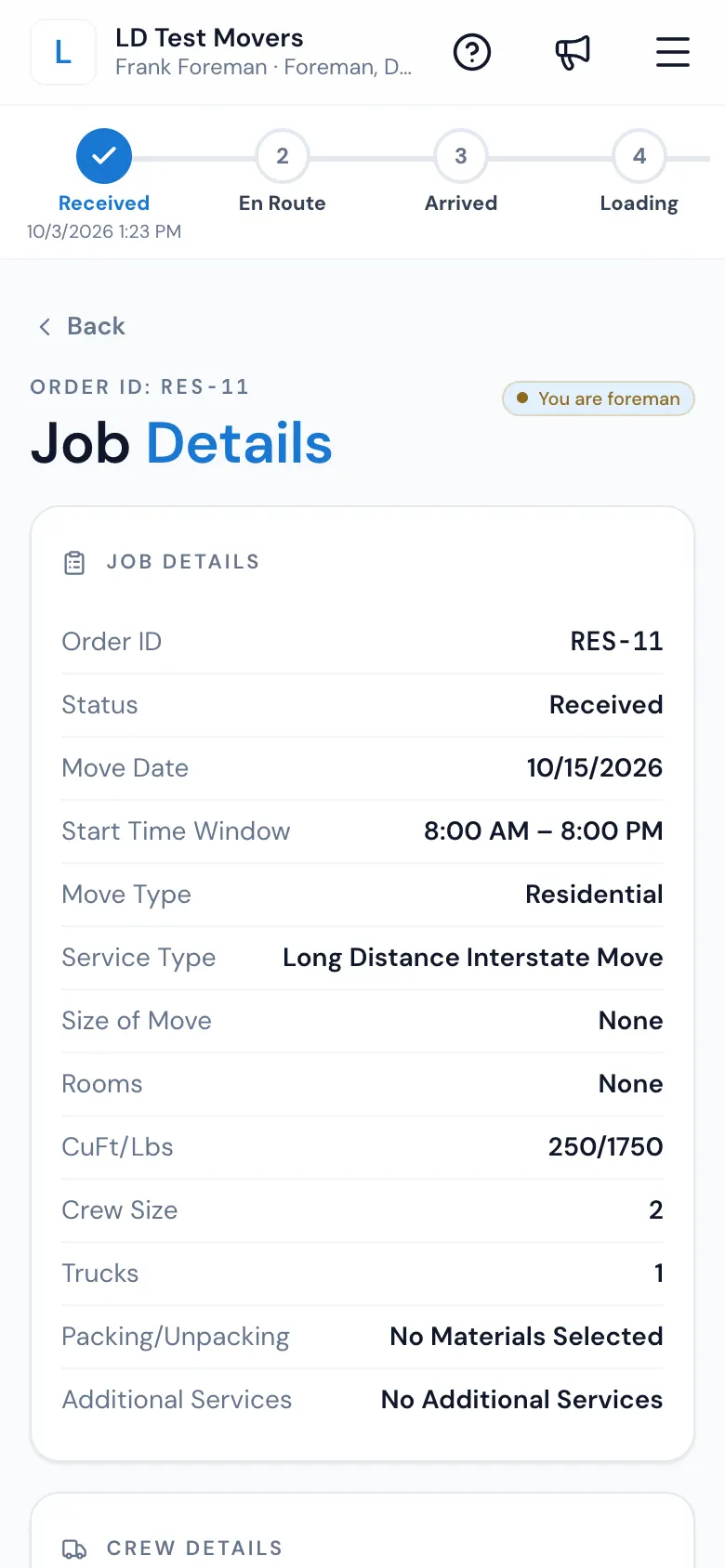
Job Details
- Order ID, Status, Move Date (and Delivery Date on a long-distance delivery), Start Time Window.
- Move Type, Service Type, Size of Move, Rooms.
- CuFt/Lbs — tap it to see the inventory, item by item.
- Crew Size and Trucks — what the job was priced for.
- Packing/Unpacking — See Materials Needed opens the boxes and materials sold, with their quantities and charges (or No Materials Selected).
- Additional Services — the extra services sold (or No Additional Services).
Crew Details — the trucks going out and everyone on the crew, marked Foreman and Driver, with (you) next to your name.
Customer Details — Name, Email, Phone (tap to call) and Info. Before you leave, the origin and destination show as the town only.
Office Notes — notes the office left for the foreman, with who wrote them and when. See Notes.
At the bottom, EN ROUTE — see Send the ETA text and go En Route.
On the way: the move details
Once you're en route, the job opens on the move details instead:
- Contact name and Phone (tap to call), Move Date and Start Time;
- a map of your drive from where you are to the customer;
- every address, lettered A, B, C — Tap an address to navigate;
- ARRIVED at the bottom — see Arrive and start the clock.
Get directions
- Tap an address. It opens your maps — Apple Maps on an iPhone or iPad, Google Maps on other phones.
- Or tap the round button next to the address to choose the app: Google Maps, Waze, or Apple Maps on an iPhone.
After you arrive, the Job Details tile shows the full addresses in an Address section, with the same directions buttons.
Related guides
- Mover's PortalSend the ETA text and go En RouteBefore you drive off, tell the customer when you'll arrive — the text goes first, then the job moves to En Route. What to do with no signal or no text.
- Mover's PortalArrive and start the clockPress ARRIVED at the door, then start the job's time on the bill of lading — by picking the start time or with the Start button, as your company counts hours.
- Mover's PortalThe job screenOnce you've arrived, a job opens on its tiles — Bill of Lading, Order for Service, details, photos, notes, forms and agreements — with the status chain across the top.
- Mover's PortalNotes from the office and foreman notesRead the notes the office left for the crew, and write your own foreman notes on the job — the office sees them on the board.
- Mover's PortalInventory on the jobSee what the customer listed for the move — item by item — from Job Details on your phone, so you know what to expect before you load.
Still stuck? A person will help.
Open a ticket from Support inside MoveBoard, or email us — we usually reply within one business day.