
Booking & payments
The Payments window
Every payment on an order in one window — take a charge, record cash or a check, refund, delete, transfer and send receipts.
- 2 min read
- Checked against MoveBoard
- For sales, owners & admins
On this page
Open the Payments window from the order: in Quote Details, press the Payment row.
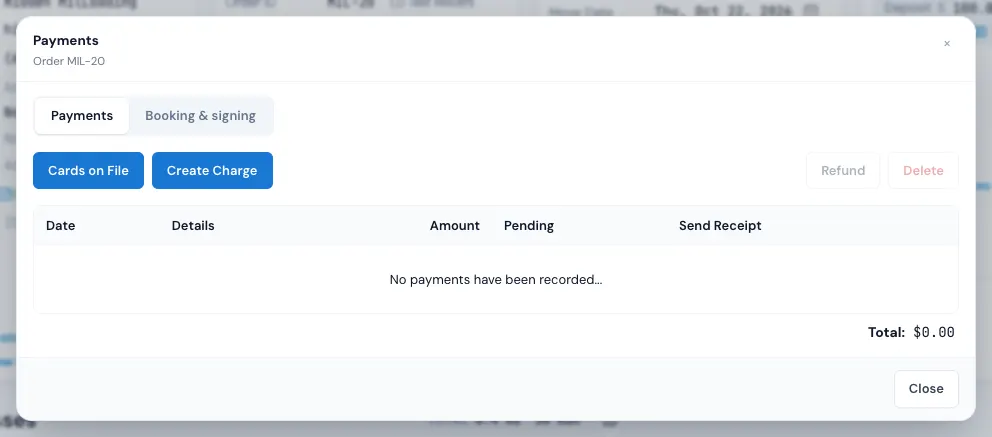
What's in it
Along the top:
- Cards on File — the customer's saved cards. See Cards on file.
- Create Charge — take or record a payment.
- Refund and Delete — tick a payment in the table first (Pick a payment first).
Then the table, newest first: Date, Details (method, card, who took it, notes), Amount, Pending, and Send Receipt. The footer shows the Total. With no payments yet: No payments have been recorded...
The Booking & signing tab shows the deposit, the documents waiting to be signed, the signed ones, and a link to the signing page.
Take or record a payment
Press Create Charge. Create Payment opens:
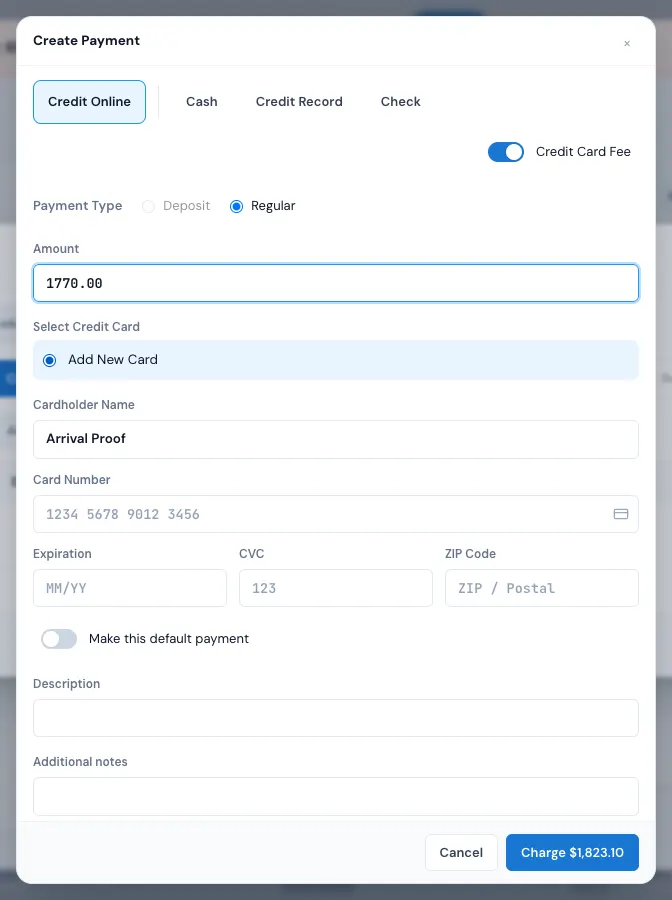
- Choose how they're paying: - Credit Online — charge a card now (a card on file, or Add New Card). - Cash, Check or Credit Record — record money already received. Credit Record is for a card charged somewhere else: This is to record your payment only, and will NOT process any electronic payments. - Any payment types your company added — see Your own payment types.
- Under Payment Type, choose Deposit or Regular.
- Fill in the Amount and the fields for that method — Paid Date, Check Number, the card details — and any Additional notes. The Paid Date calendar shows last month and this month side by side (one month on a phone); Edit opens it the same way.
- If your company adds a card fee or a cash discount, its switch shows (for example Credit Card Fee or Cash Discount) — see Card fees and cash discounts.
- Press Charge (cards) or Record (everything else). The button shows the total once a fee or discount changes it.
The new payment appears in the table straight away, and the order's Payment and Balance follow.
Payments on the closing side
Opened from the closing, the window is Payments (Closing). A Show on BOL switch puts the payment on the crew's bill of lading (once the day has a crew). After a charge, MoveBoard asks Send payment receipt?
Multi-day moves
Each day's payments are filed under that day; choose All services to see them all.
If a button is greyed
Hover over it to read why:
- You do not have permission to do that. — ask your admin for the payment permission.
- Unable to process online payments. Please connect your authorize.net account. — card payments aren't set up for your company yet.
Related guides
- Booking & paymentsTake a depositTake the customer's deposit by card, cash, check or another way from the Payments window — and the order becomes Reserved.
- Booking & paymentsCards on fileSave a customer's card, charge it later, pick the default card and take a card off the file.
- Booking & paymentsRefund or void a paymentGive money back on a card, cash, check or other payment — or void a card charge that hasn't settled yet.
- Booking & paymentsDelete or transfer a paymentRemove a payment recorded by mistake, or move a payment to the order it really belongs to.
- Booking & paymentsPayment receiptsWhich receipt goes to the customer when, how to send one by hand, and how to change what it says.
- Booking & paymentsCard fees and cash discountsAdd a fee to card payments, give a discount for cash, and choose where each applies.
Still stuck? A person will help.
Open a ticket from Support inside MoveBoard, or email us — we usually reply within one business day.