
Booking & payments
Take a deposit
Take the customer's deposit by card, cash, check or another way from the Payments window — and the order becomes Reserved.
- 4 min read
- Checked against MoveBoard
- For sales, owners & admins
A deposit holds the customer's date. Take it over the phone from the order's Payments window: the money goes on the order and the order becomes Reserved. When the customer then signs the Order for Service, it's Booked.
Before you start
- You need the Can charge a reservation payment permission. Charging a card online also needs Can charge an online payment. Admins can always.
- Every day of the move needs a truck, and the order must have a deposit still due (the Deposit row in Quote Details). Save the order first if you just changed either.
- Charging a card needs your card processor connected in Settings › Payments & billing › Payment processing. Without it you can still record a card taken elsewhere.
Take it
- Open the order and press the Payment row in Quote Details. The Payments window opens.
- Press Create Charge.
- Pick how the customer pays: Credit Online (charges a card now), Cash, Credit Record (writes down a card payment taken some other way — nothing is charged), Check, or one of your own payment types.
- Under Payment Type, make sure Deposit is picked. MoveBoard picks it for you when a deposit is due, and fills in the Amount still due.
- Fill in the rest: - Credit Online — under Select Credit Card, pick a card on file or Add New Card and type the Cardholder Name, Card Number, Expiration, CCV and ZIP Code. Turn on Make this default payment to make it the customer's main card. Add a Description and Additional notes if you like. - Cash or your own type — the Paid Date and any notes. - Check — the Paid Date and Check Number. - Credit Record — the Paid Date, Cardholder Name, and if you have them the Card Number (last 4), Expiration and ZIP Code.
- Press Charge (a card) or Record (everything else). If your company adds the card fee to deposits taken in the order window, Create Payment shows the sum first — for example Deposit $200.00 + card fee $7.00 = $207.00 — and the button reads Charge $207.00.
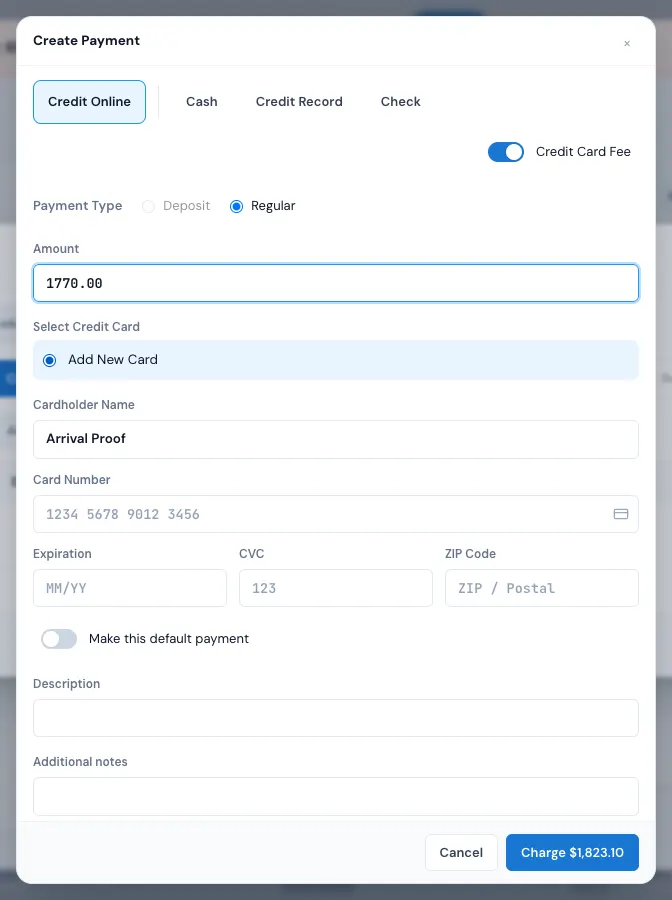
You can change the amount: the office can take any deposit. (A customer paying from their portal must pay at least the deposit asked.)
What happens next
- The payment shows in the Payments window straight away, with a message such as Credit card charge has been submitted. or Cash payment created.
- The order moves to Reserved (unless it's already Reserved or Booked), and the customer gets your company's Reserved messages once.
- A deposit never carries a cash discount or a tip. It carries the card fee only when it's charged to a card and Deposit taken in the order window is on in Settings › Payments & billing › Payment & processing fees (it starts off) — see Card fees and cash discounts. The receipt and the closing show the deposit and the fee as they were charged.
- A new card charged here is kept on the customer's file for next time.
- The customer gets a payment receipt if your company sends receipts for deposits — see Payment receipts.
- The Order Log records the payment, who took it, and the status change.
Next, the customer signs — see Book a job.
If something goes wrong
- Deposit is greyed out. Hover it: - You must select a truck for this order and save your changes, then proceed to process the payment. - Deposit already paid or you need to enter reservation amount and save your changes, then proceed to process the payment.
- Credit Online is greyed out: Unable to process online payments. Please connect your authorize.net account. or Do not have permissions to create online payment.
- Create Charge is greyed out: You do not have permission to do that.
- A box is missing something: Amount is a required field, Check Number is a required field, Cardholder Name is a required field, Please enter your first and last name separated by a space, CCV must be exactly 3 characters (4 for American Express).
- The card didn't go through: There was an error charging credit card. followed by the reason. See When a card is declined.
Related guides
- Booking & paymentsThe Payments windowEvery payment on an order in one window — take a charge, record cash or a check, refund, delete, transfer and send receipts.
- Booking & paymentsBook a jobHow an order goes from Reserved to Booked — the customer signs the Order for Service, online or with you on the phone.
- Booking & paymentsHow the deposit amount is setThe rules that work out each order's deposit — per kind of move, per truck, per day, and the raise closer to the move.
- Booking & paymentsChange the deposit or fuel amount on an orderType your own deposit or fuel surcharge on one order — who may, and how to go back to your rules.
- Booking & paymentsCards on fileSave a customer's card, charge it later, pick the default card and take a card off the file.
- Booking & paymentsWhen a card is declinedWhat happens when a card charge is declined or the card processor doesn't answer — and what to do next.
Still stuck? A person will help.
Open a ticket from Support inside MoveBoard, or email us — we usually reply within one business day.