
Claims
File a claim for a customer over the phone
The customer called about damage? Send them their claim link in one press — or fill the claim in for them while you talk.
- 9 min read
- Checked against MoveBoard
- For owners & admins, dispatchers, sales
On this page
A claim is the customer's report of damage, with what they're owed. MoveBoard works out the settlement from your valuation rules, keeps the deadlines, and walks the claim to the signed settlement and the payment.
Start the claim
From the Claims page:
- Press New claim.
- Search for the order by number, customer name, phone or email, and pick it.
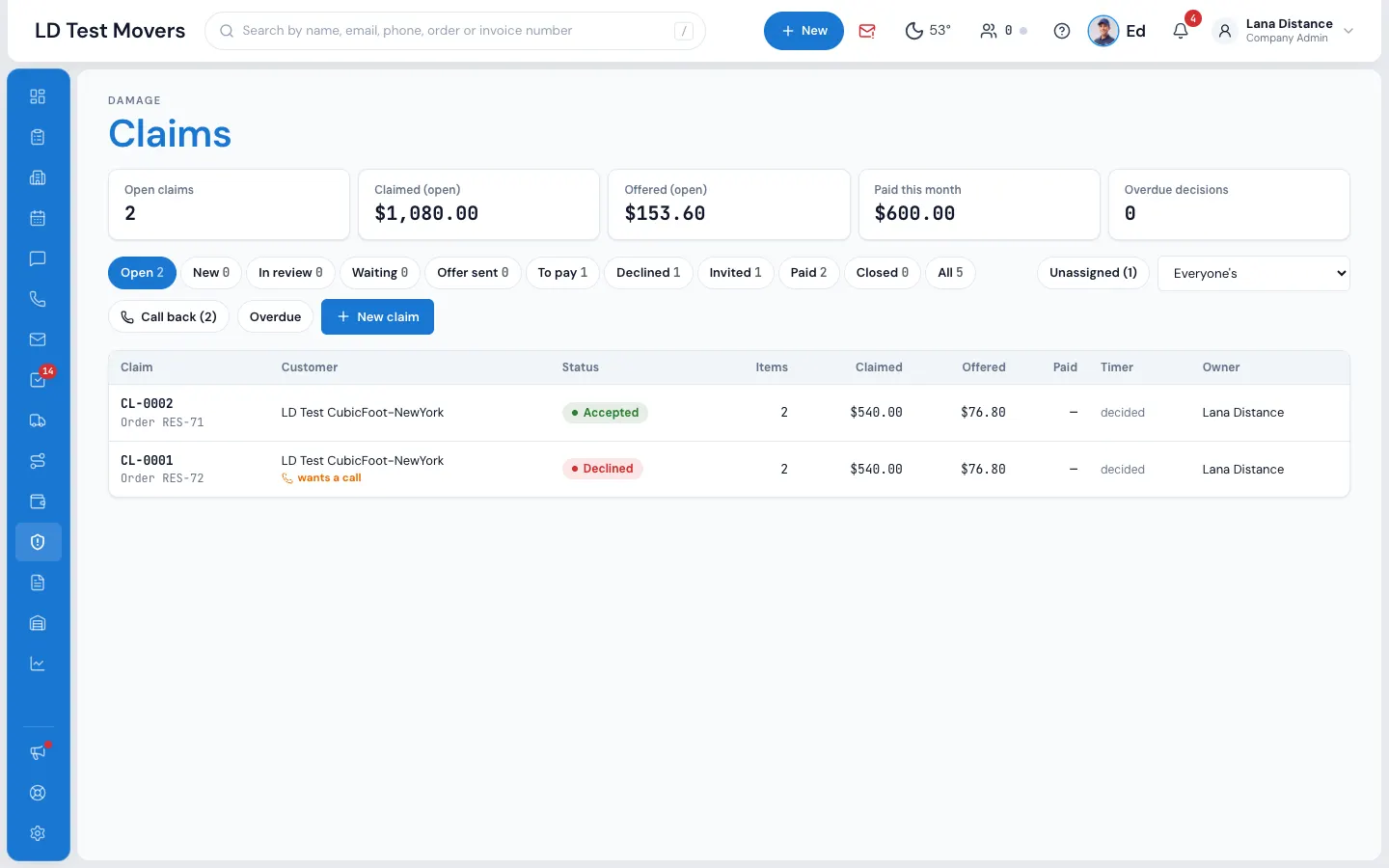
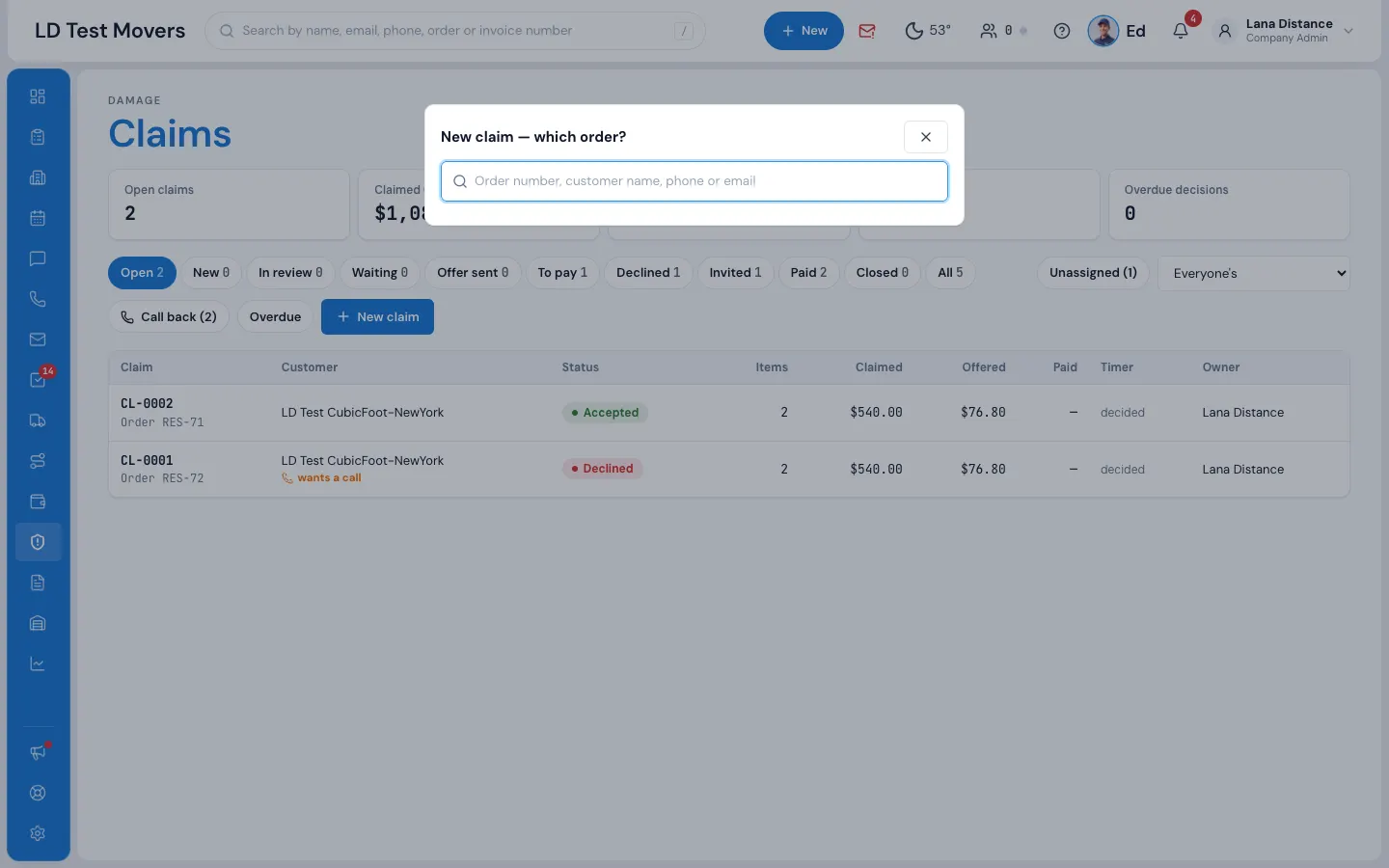
The claim opens in its own window. Or from the order itself: open the order window and press Claims (in the ⋮ if it isn't showing) — the same claim window opens.
The Claims page is a list, one claim per row, with the tabs and filters at the top. Double-click a claim (or press Enter on it; double-tap on a phone) to open it in its own window. Like orders, several claims can be open at once, and — puts one away in the bar at the bottom.
Choose: send the link, or fill it in
With no claim on the order yet, you have two ways:
- Send claim link to the customer — tick Email, Text or both. The customer gets an apology with their own link to report the damage, with photos, whenever suits them.
- Fill in a claim for the customer (phone, mail) — for a customer who'd rather tell you now, or who doesn't use a computer. Everything you type saves as you go.
Fill it in, item by item
For each damaged thing, ask:
- What was damaged? — Something we moved or The home or building.
- What is it? (for example "oak dresser") — the item's main description, in the wide box across the card — or, for the home, Where is the damage? The Inventory tag number (optional) is the short box under it.
- What happened to it? — damaged, lost or missing, or destroyed — and When did it happen?
- Who packed it? — press The movers or The customer (the same buttons as the other questions).
- What it's worth, What it would cost to replace, a repair estimate if they have one, about how heavy it is, and the year bought.
- About this item (all optional — a mirror has no model): Brand / make, Model, Where it was bought, Price paid, and a Link to the exact item online. Brand, where it was bought and the price paid help you decide faster.
- Tell us what happened, in their words. Add photos and the receipt if they have them.
As you type, What MoveBoard works out shows the settlement under your valuation rules.
Press Submit the claim for the customer. (It tells you if an item still needs details.) The claim is marked as filed by you, for the customer, and the customer gets an email confirming it with a link to follow it.
After it's filed
- Take it to make it yours, or pick an owner — in the bar at the top of the claim.
- Start review or Ask the customer for more (also in the top bar). Write notes for the office in Notes.
- Send the offer — set an amount for every item (damage to the home too; $0 is fine). You can also set an item's amount in its pop-up — it's the same amount. The total is the items added up (with Full Value Protection, less the deductible and capped at the declared value). A note to the customer is optional. Once the offer is out, the Offer section says Offer $X sent with the date and time, and the button reads Resend offer $X to the customer — so you can tell at a glance it already went. Change an amount and the button becomes Send revised offer $Y to the customer. Amounts can be changed until the customer signs.
- Get the settlement signed — see below.
- Mark paid — mark the claim paid once the settlement is signed: amount, how it was paid, the date and a reference.
- Close claim with a reason if it ends another way.
Ask the customer for more
Ask the customer for more sends your question by email and text. Their link then shows their claim read-only with your question and one box to answer (they can add photos or files) — they can't change or add items. Their answer lands on the claim, under Items (in The customer's answers) and in Activity, and gives the owner a task.
Get the settlement signed
The customer signs the settlement on their claim page: the settlement document with your logo, the items and the amount, signed at the bottom. They type their full name first — it is never filled in for them — and only then can they sign. To send it for signature, tick how in Settlement & signature — Email link to e-sign and Text link to e-sign are ticked for you, Email a PDF to sign if they'd rather print it — and press Send. Each ticked way goes once, and the line under it says what went where. Print to mail prints it; then upload the signed copy.
Working the claim
The claim window has a bar at the top: the claim number and its status, the Owner (Take it, or pick someone), and the two actions — Ask the customer for more and Close claim (in red).
Under it, the work is on the left — Items, Offer and Notes — and the facts on the right — Customer & job, Settlement & signature, Tasks and Activity. On a phone or a narrow screen it's one column in that order.
- Notes are for the office only — the customer never sees them. Write in Write a note for the office… and press Add; the newest note is on top, with who wrote it and when. What you type is kept until you add it.
- Tasks shows one line per task about this claim — what it is, who it's for, when it's due — open ones first. Click a task to see it and mark it done; Show all when there are more than 3. Sending the offer marks the claim's New damage claim … send the offer task done by itself, for whoever has it, and Activity says Task done: offer sent. Other tasks (a call back, an answer to read) stay until you mark them done.
- Activity is the claim's history — every step, newest first, with a small icon for who did it (someone in the office, the customer, or MoveBoard automatically) and the time. The latest 6 show; Show all for the rest. Notes are not in Activity — they're in Notes.
The Customer & job section shows the job — the move date and delivery, what was paid and the balance, the protection, the foreman, the whole crew (each with their claims score) and the trucks — with the order number to open the order.
Click anywhere on an item's row (or press Enter on it) to see everything the customer entered, with the photos and the item's link (it opens in a new tab). To correct a detail (a "500 lb" TV that really weighs 100 lb), change it, say why the change, and press Save correction. The amount is worked out again from the corrected details, and the customer sees what changed — was → now, with your reason.
Photos, receipts, estimates and the settlement open in MoveBoard's own viewer, with Print, Download, and Previous / Next.
When the customer asks to be called, press Call to ring them through your phone, then Mark as called back (it only marks it — it doesn't dial).
Everything updates on screen by itself: a new claim, the customer's changes, a callback request, an accept or decline. The menu shows a red count of open claims, and the order's Claims button carries a red badge whenever the order has a claim. Every change the customer makes — filing, sending again, reopening, asking to be called, accepting, declining — gives the claim's owner one task (never two for the same thing).
A claim filed after the filing window says so plainly, for example Filed 11 months after delivery — your filing window is 9 months, with the dates.
The Claims page tracks the clocks for you: a claim is acknowledged within 30 days and decided within 120 days, turning amber in the last 15.
Set it up once
Settings › Documents & bill of lading › Claims decides who owns new claims, when the customer sees the offer, whether they can add missed items later, how claims are paid, your denial letter, the released-value rate, the words of the invitation, whether the customer sees a Decline button (on unless you turn it off — they can always accept and sign, or press Request a call from the company), and the Settlement document.
The settlement document
The settlement document is what the customer signs to accept an offer. The same document is their signing page, the PDF you email and the printed copy. In Settlement document, click the title or the words and type. Variable puts the claim's details where the cursor is: the customer's name, the amount, the claim and order numbers, the items, the date and more. Put Items and amounts on a line of its own to place the items table; if you leave it out, the table goes after your words. MoveBoard always adds your logo and contact details, the claim's details, the amount and the signature box. Press Preview with a sample claim to see it as the customer will, or Use MoveBoard's words to start again from the standard wording.
Related guides
- OrdersThe order window, card by cardEverything on an order in one window — the top bar, the status, the truck schedule, the four cards, the addresses, the conversation — and how SAVE works.
- ClaimsCrew claims scoreSee which movers' jobs get the most damage claims, so you know who to coach and who to trust with the fragile jobs.
- Moving industry know-howGlossary of moving and MoveBoard wordsEvery word you'll meet in MoveBoard and in the moving business — leads and statuses, pricing, valuation, bills of lading, long distance and storage — in plain English.
Still stuck? A person will help.
Open a ticket from Support inside MoveBoard, or email us — we usually reply within one business day.